
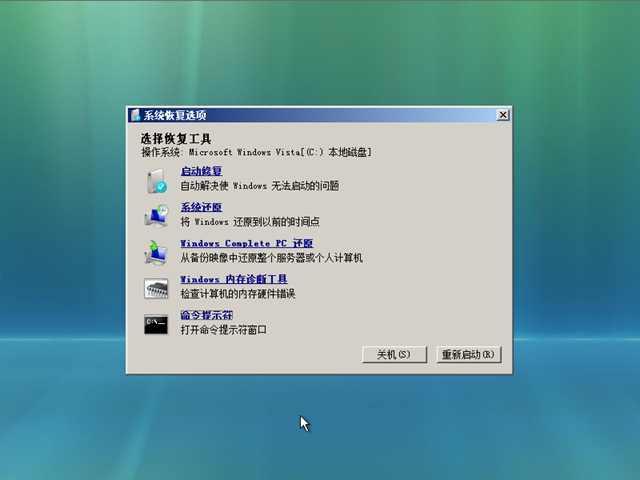
Windows Vista版
Windows RE最初是Windows Vista安装光盘中提供的修复选项,提供多种工具用于修复Windows。对于不提供Windows Vista原始安装光盘的OEM厂商而言,一部分厂商会在计算机中集成Windows RE,可通过在启动Windows时按F8键选择“修复计算机”来启动此Windows RE。
Windows 7版
Windows 7版的Windows RE与Windows Vista版功能相同,但是会默认安装在硬盘中。换句话说,非OEM版本的Windows 7也可以通过F8菜单访问Windows RE,而不必插入Windows 7的安装光盘。
启动修复
使用“启动修复”功能时,Windows RE会自动监测硬盘上安装的Windows存在什么问题,并自动予以修复。例如,如果MBR被修改,该功能可以帮助恢复MBR。
系统还原
使用Windows系统的人都应该知道Windows系统还原吧,当Windows无法启动时,可以用Windows RE还原系统(当然,你要有还原点可供还原)。
系统映像还原
如果你在Windows中创建了系统映像(Windows Vista中称为Windows Complete PC备份),那么你就可以利用Windows RE进行还原。
Windows内存诊断
该功能与启动Windows时在“工具”菜单中选择Windows内存诊断功能相同,可以诊断内存硬件的问题
命令提示符
Windows RE命令提示符相当于正常的Windows PE命令提示符,可用于执行某些命令修复Windows。
DaRT版Windows RE截图
如图所示,DaRT版本的Windows RE有一些特殊的功能。WinRE配置使用REAGENTC.exe CMD应用程序,默认随系统已安装。
『reagentc /info』:显示 Windows RE 和系统初始化配置信息命令
启用WinRE:『reagentc /enable』
关闭WinRE:『reagentc /disable』
『reagentc /setreimage』:重新初始化WinRE,例如:使用reagentc /setreimage /path C:\Recovery\WindowsRE命令重新初始化WinRE。[1]
把WinRE镜像(boot.sdi和winre.wim)以及Win7镜像(install.wim)均放在该目录下R:
例如R:\recovery\windowsre\
Reagentc /disable 停止当前的WinRE。
Reagentc /Setreimage /Path R:\Recovery\WindowsRE /bootkey 3b00 '重新定义WinRE的启动路径,F1激活。
Reagentc /Setosimage /Path R:\Recovery\WindowsRE '指定WinRE启动Win7安装镜像路径。或Reagentc /Setosimage /Path R:\Recovery\WindowsRE /index1。
Reagentc /enable '重启WinRE 。
[1] Windows恢复环境(Windows RE)配置 · 新浪博客[引用日期2018-04-24]
 金田明夫
金田明夫 贾科莫·普契尼
 Caroline Lufkin
 翁建宇
翁建宇 Ivanov
 玛丽亚·凯莉
 PC阳光板
PC阳光板 图形图像文件
 不碎玻璃
不碎玻璃